
James Allman | JA Technology Solutions LLC
Comparing Data Files: Choosing the Right Tool
How to pick between record-level and line-level comparison, and get messy spreadsheets into a shape the tools can actually read.
Comparing two versions of the same data is one of the most common (and most underestimated) tasks in business data work. After a system migration, you need to confirm the new system holds the same records as the old one. Before a price file goes live, you want to see exactly which items changed. When two people email you "the same" spreadsheet a week apart, the only way to trust it is to find the differences.
The instinct is to just diff the two files, but a plain text diff falls apart the moment rows are reordered, a column shifts, or one file is an Excel export and the other is a CSV. The right approach depends on what kind of data you actually have. This guide walks through the two comparison tools on this site (and the converter that gets your data ready for them) so you can pick the right one the first time. (One adjacent case: when the question is really which rows in one file have no match in the other, that is a join, and the CSV SQL Query Tool answers it directly with SQL across both files.) Everything described here runs entirely in your browser; the files you load never leave your machine.
Start With Your Data, Not the Tool
Before choosing a tool, answer one question: are you comparing rows of records, or lines of text? It sounds trivial, but it is the distinction that determines which tool will actually help.
If your data is a table (customers, products, transactions, inventory) where each row is a record identified by a key (a customer ID, a SKU, an order number), and the rows might appear in a different order in each file, you want record-level comparison. That is the Data Diff & Compare tool. It matches records by their key and tells you which were added, removed, or changed, regardless of the order the rows happen to be in.
If your data is free-form text (source code, a configuration file, a log, a contract, a fixed-width report) where the order of the lines is part of the meaning and there is no key to match on, you want line-level comparison. That is the File Compare & Merge tool. It shows you every line that changed, with the exact words inside each line highlighted.
The formats overlap, and that is where people get tripped up. Data Diff reads delimited files (CSV, TSV) and structured files (JSON, XML, YAML, Excel) alike, because it cares about records, not syntax. File Compare reads any text at all, including JSON and code, because it cares about lines. The deciding factor is never the file extension. It is whether you are matching records by a key or reading changes line by line.
Comparing Records: Data Diff & Compare
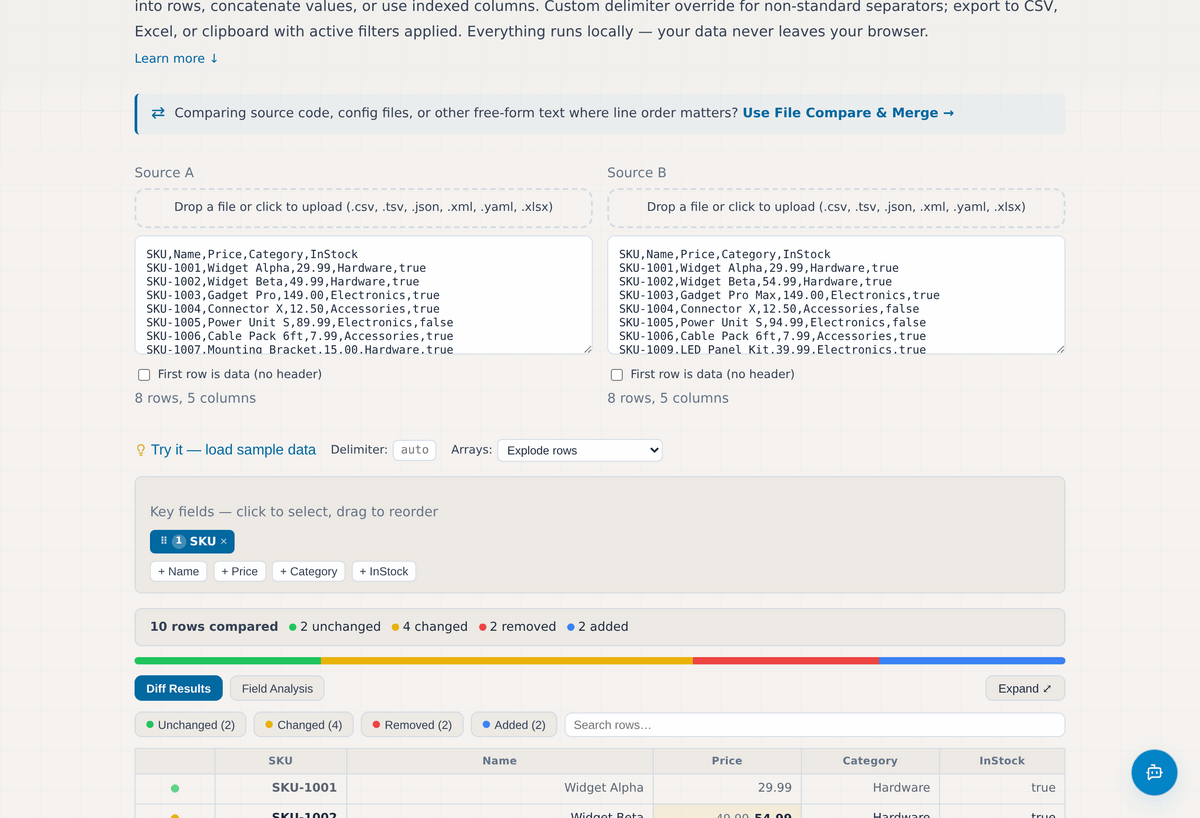
To compare two record sets, paste or drop each file into the Source A and Source B panels: CSV, TSV, JSON, XML, YAML, or an Excel workbook on either side. The tool auto-detects the delimiter, though you can override it for unusual separators. If you want to see it work before bringing your own data, use the "load sample data" link.
Next, choose your key field: the column that uniquely identifies each record, such as SKU or Customer ID. You can select more than one if a single column is not unique on its own (store number plus item number, for example). This is the step that makes the comparison meaningful: instead of comparing line one to line one, the tool joins the two files on the key and compares matching records, so reordered rows stop showing up as false differences.
The result classifies every record as unchanged, changed, added (present only in B), or removed (present only in A), with a color bar showing the proportions at a glance and filters to isolate each category. For changed records, the specific fields that differ are highlighted with their old and new values side by side, so a column that quietly changed format, or a price that moved, is easy to spot across hundreds of rows. You can export the result, with your active filters applied, to CSV, Excel, or the clipboard.
Seeing the Pattern: Field Analysis
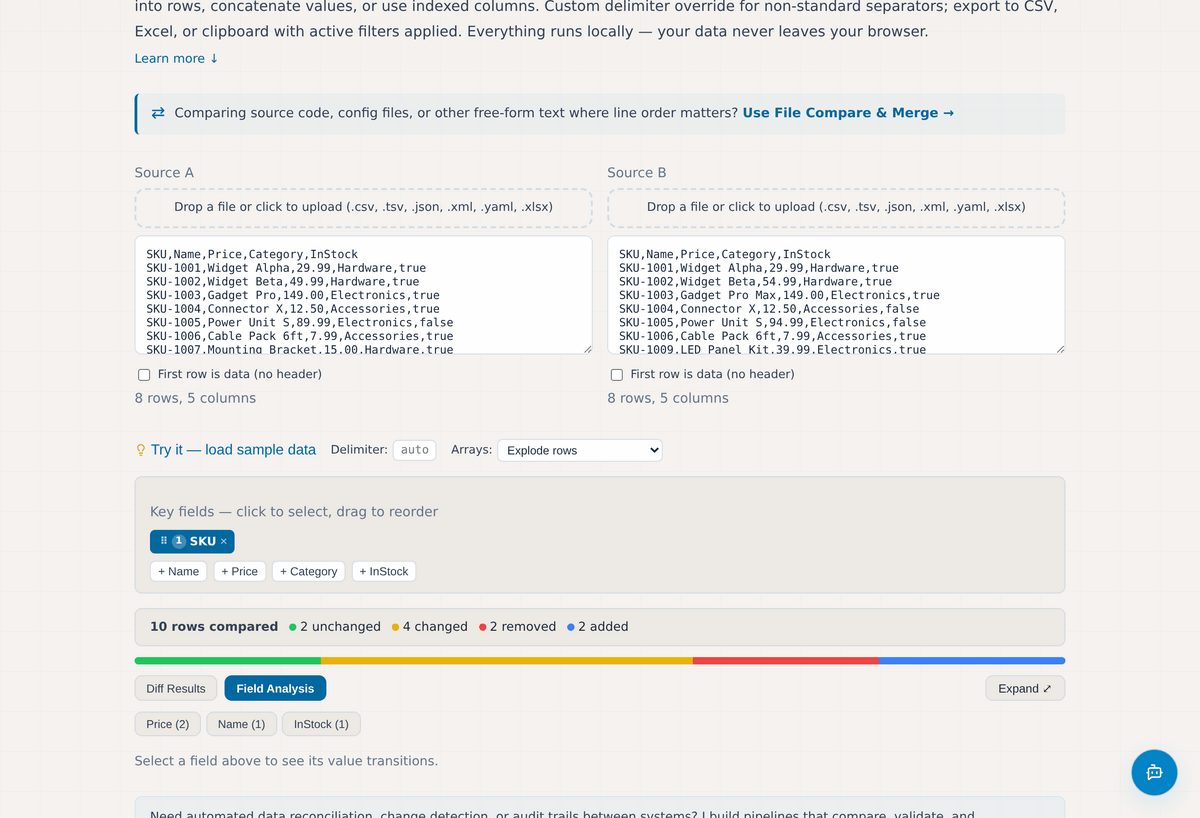
The second view, Field Analysis, answers a different question: not "which records changed" but "how did each field change across the whole dataset." It builds a per-field table of every old-to-new transition, grouped and counted, with distribution bars.
This is where data-quality problems reveal themselves. If a status field flipped from "Active" to "A" on three hundred records, or a date field lost its time zone, or a price column gained a stray decimal place, the pattern shows up here as one repeated transition rather than three hundred individual differences. It turns noise into a short list of things worth investigating.
For an even earlier read on your data (null rates, type mismatches, and whether a column is unique enough to use as a key in the first place) run it through the Data Profiler before you compare. Understanding the data you are about to diff often explains the differences before you find them.
Comparing Text and Code: File Compare & Merge
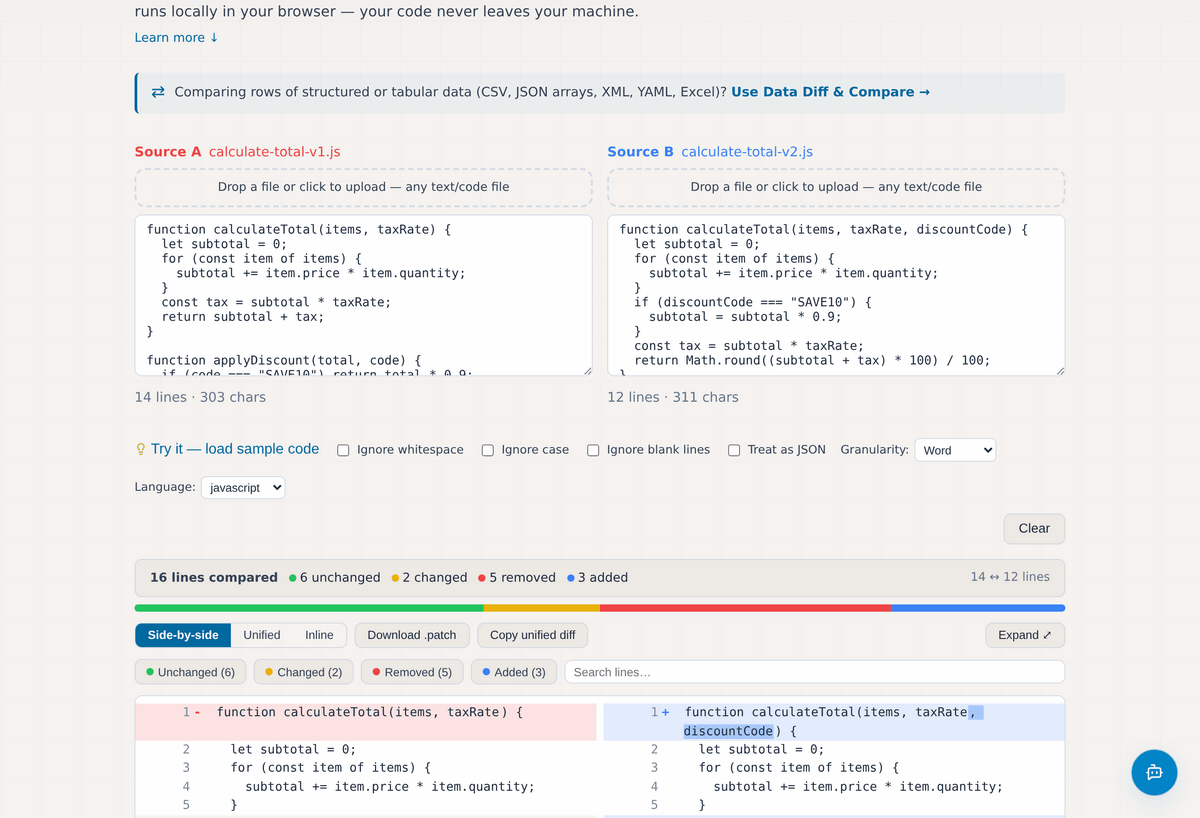
When line order matters and there is no key to join on, File Compare & Merge is the tool. Paste or upload two files into Source A and Source B and it shows every changed line, with word-level (or character-level) highlighting inside each line so you can see exactly what moved. Switch between side-by-side, unified (the format git produces), and inline views depending on how you prefer to read a diff.
A row of toggles handles the noise: ignore whitespace when an auto-formatter has re-wrapped lines, ignore case, ignore blank lines, or turn on JSON structural mode, which normalizes key order so a re-saved config with the same data does not show as changed. Syntax highlighting covers 22 languages, which makes code and configuration comparisons far easier to read.
Beyond viewing, the tool can generate a unified-diff patch you can share as a file, and it can apply a pasted patch back onto Source A, handy for handing someone a small change without giving them access to the whole project. It handles files up to 25 MB per side and runs the comparison in the background, so the page stays responsive even on large inputs.
First, Get It Out of Excel
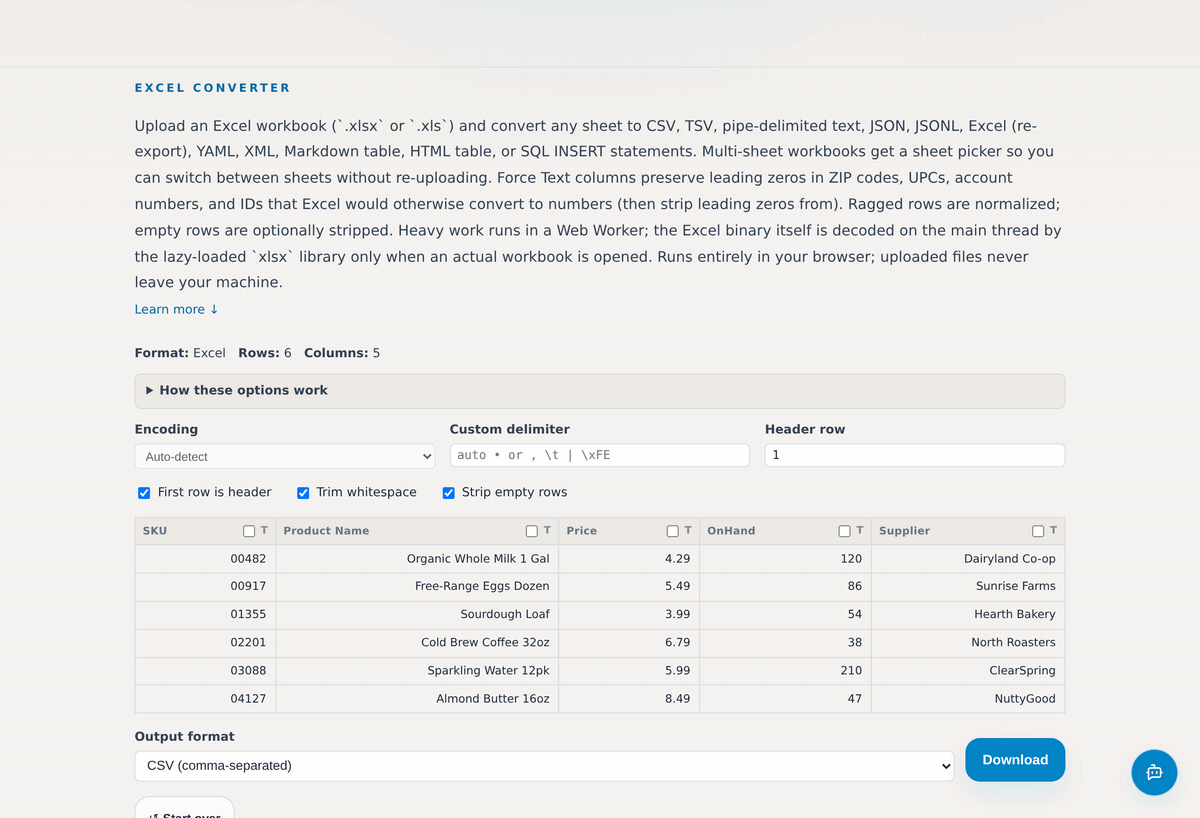
Most real-world data starts life in a spreadsheet, and Excel is quietly the most hostile format to compare from directly. It auto-converts ZIP codes and UPCs to numbers (stripping the leading zeros), reformats dates by locale, and turns long account numbers into scientific notation. Compare two Excel exports as-is and you risk chasing differences the spreadsheet invented.
The Excel Converter is the first step in almost any reliable comparison. Upload an .xlsx or .xls workbook, pick the sheet you need (multi-sheet workbooks get a sheet picker), and convert it to clean CSV, or TSV, pipe-delimited text, JSON, XML, and several other formats. The option that matters most is Force Text: mark the columns that hold ZIP codes, UPCs, SKUs, or account numbers and their leading zeros survive into the output instead of being silently dropped.
With both sides exported to consistent, predictable CSV, the comparison in Data Diff is clean. You are comparing your data, not Excel's interpretation of it. Data Diff can read .xlsx directly when that is more convenient, but converting first gives you a reusable, inspectable file and removes any doubt about how a given cell was interpreted.
Other Tools That Help Along the Way
A few more converters round out the workflow, depending on where your data comes from. If it arrives as positional or fixed-width records (common from mainframe and legacy banking systems) convert it with the Fixed-Width ↔ CSV tool before comparing. If you are juggling separators, the CSV & Delimited Text Converter moves cleanly between comma, tab, pipe, and semicolon formats, handling quoted fields and embedded newlines correctly along the way.
For application data, JSON ↔ CSV flattens nested objects into columns and back, and for large analytical datasets the Parquet File Explorer opens columnar Parquet files and exports them to CSV, JSON, or Excel. Each of these shares the same two properties as the comparison tools: it runs entirely in your browser, so your data never leaves your machine, and it is built for hands-on, one-off work: inspecting a file, validating a migration, settling a "did this actually change?" question.
Where Hand Tools End and Pipelines Begin
These tools are deliberately scoped to the moment you have two files in front of you. That covers a great deal of day-to-day work: spot-checking a migration, validating a vendor file, reconciling two exports by hand. What they do not do is run on a schedule.
When the same comparison happens every day (reconciling an ERP against a data warehouse, auditing every store's price file against the host, validating millions of records after each migration run) the work belongs in an automated pipeline that compares on a schedule, flags discrepancies by category and severity, and produces an audit-ready report without anyone opening a browser. That is the kind of ETL and data-integration work I build for clients across IBM i, Windows, and Linux environments.
If a comparison you are doing by hand today should really be running on its own (or you simply want a second opinion on which tool fits a specific file) Ask James. I read every conversation that comes through the chat assistant on this site, and I'll follow up directly.